If you run a small startup or SaaS, you need reliable transactional email: sign‑up confirmations, password reset links, payment receipts, onboarding emails, and alerts your users must receive. SimploMail lets you send those emails using a simple REST API, without managing SMTP servers, IPs, or deliverability rules yourself.
One more important detail: SimploMail gives you 5,000 email sends for free, which is more than enough for an early‑stage product to start sending real emails to real users without adding another paid tool to your stack.
In this tutorial, you will see how to:
-
Verify your domain
-
Add and verify a sender email address
-
Create an API key
-
Call the
/v1/email/sendREST endpoint to send a transactional email
You can follow this even if you have never used an email API before.
Step 1 – Sign up
First, create your SimploMail account at simplomail.com.
You only need a few minutes: enter your name, email address, and set a password. After sign‑up, confirm your email address so you can use all features in your account.
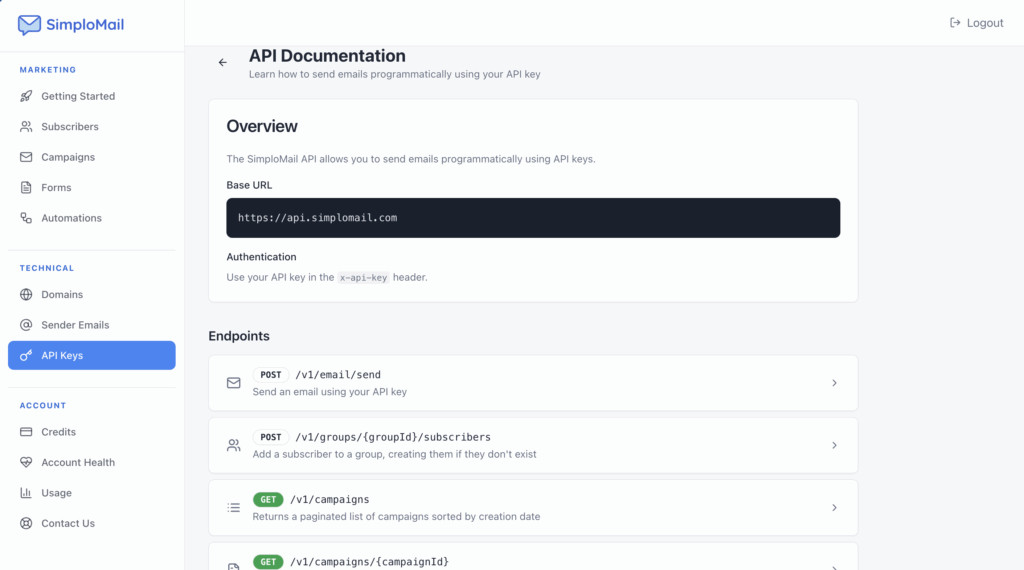
Once you are in, you will see the left‑side navigation with sections like “Subscribers”, “Campaigns”, “Forms”, “Automations”, and under “Technical” you will see “Domains”, “Sender Emails”, and “API Keys”. That is where you will work for the API setup.
Step 2 – Add and verify your custom domain
Transactional emails should come from your own domain, not from some generic shared address. This builds trust with your users and improves deliverability.
-
In the SimploMail dashboard, go to Domains.
-
Add the domain you want to send from, for example
yourapp.com. -
SimploMail will show you DNS records (like TXT, CNAME, maybe MX) that you must add in your DNS provider (Cloudflare, Route 53, your registrar, etc.).
-
Add those records exactly as shown.
-
Wait for DNS to propagate and then click Check Verification Status in SimploMail.
Once the domain status changes to “Verified”, SimploMail can send email on behalf of that domain.
Step 3 – Add and verify your sender email address
A verified domain is not enough; you also need at least one verified sender email address (for example [email protected]or [email protected]) that the API will use when sending.
-
Go to Sender Emails.
-
Click Add API Sender Email.
-
Enter the email address you want to use, plus a display name (for example:
-
Email:
[email protected] -
Display name:
YourApp
-
-
Save it. SimploMail sends a verification email to this address.
-
Open that email and click the verification link.
After that, you should see the sender marked as Confirmed in the Sender Emails screen. You can also set one sender as Default. The API uses your default verified sender automatically, so you do not have to pass the from address in every request.
This keeps your API calls minimal and prevents sending from unverified addresses.
Step 4 – Create an API key
Now you are ready to create the API key that your backend or automation tool will use.
-
Go to API Keys.
-
Click Generate New API Key.
-
Give the key a clear name like
Production BackendorN8N, depending on how you will use it. -
SimploMail generates a key value string. Copy this key and store it securely (for example, in environment variables or your secrets manager). Do not commit it to Git.
-
Make sure the key status is Active.
You will use this key in the x-api-key header on every API request. If the key is missing, the API will respond with 401 Unauthorized. If the key is invalid or not active, you will see 403 Forbidden.
Step 5 – Send a transactional email via REST API
With domain, sender, and API key ready, you can send your first email. The endpoint is:
POST https://api.simplomail.com/v1/email/send
Request headers
Use two headers:
-
x-api-key: your API key -
Content-Type: application/json
Request body fields
The JSON body accepts these fields:
-
to– recipient email address (one recipient per request). For testing, use[email protected]. -
subject– email subject line. It cannot be empty. -
body– the email body content. You can send plain text or HTML. -
isHtml–trueifbodycontains HTML; otherwise it defaults tofalse.
Here is a simple curl example for a plain text email:
curl -X POST https://api.simplomail.com/v1/email/send \
  -H "x-api-key: YOUR_API_KEY" \
  -H "Content-Type: application/json" \
  -d '{
    "to": "[email protected]",
    "subject": "Hello from SimploMail",
    "body": "This is a test email sent via the API."
  }'
If the request is valid, the API returns HTTP 200 with JSON:
{
  "message": "Email sent successfully",
  "messageId": "abc123-def456-ghi789"
}
You can log messageId and use it later for troubleshooting or tracking.
Sending HTML emails
To send HTML instead of plain text, set isHtml to true and put HTML in the body field:
curl -X POST https://api.simplomail.com/v1/email/send \
  -H "x-api-key: YOUR_API_KEY" \
  -H "Content-Type: application/json" \
  -d '{
    "to": "[email protected]",
    "subject": "Welcome to YourApp",
    "body": "<h1>Welcome!</h1><p>Thanks for signing up.</p>",
    "isHtml": true
  }'
The sender address is still automatically set to your default verified sender.
Testing safely without sending real mail
During development you usually want to test the integration without sending real emails to users or cluttering your own inbox.
For this, always use:
to: "[email protected]"
This special address simulates a real send: the API runs all the same logic and returns the same HTTP response, but does not actually deliver the email. When you are ready to send real mail, just replace to with a real recipient address.
Avoid fake addresses like [email protected]. If the recipient address does not exist, the email will bounce, and repeated bounces hurt your sender reputation and can lead to your account being locked or sending suspended. Use the dedicated test address during development and real, valid addresses in production.
Handling errors and rate limits
The API uses standard HTTP status codes so you can handle problems cleanly in your backend:
- 400 Bad Request – missing required fields, empty subject, too many recipients, or no verified sender email.
- 401 Unauthorized – missing API key.
- 403 Forbidden – API key not recognized or not active.
- 429 Too Many Requests – you exceeded rate limits or quota for your key.
Error responses have a simple JSON format:
{ "message": "Human-readable error detail" }
Read the message field and log it. This makes debugging much easier.
Each API key has three types of limits:
- Rate limit – maximum sustained requests per second.
- Burst limit – how many requests you can send in a short spike.
- Quota – total number of requests within a billing period.
When you hit these limits, you get 429 Too Many Requests. In your code, you should handle this by backing off (for example with exponential backoff) and retrying later rather than hammering the endpoint.
Putting it all together
At this point you have:
- A SimploMail account with 5,000 free email sends
- A verified domain
- A verified default sender email address
- An active API key
- A working call to POST /v1/email/send for both text and HTML emails
From here you can integrate this into your application: send a welcome email after user registration, a password reset link, or a payment receipt right after a successful checkout. All of that is one HTTP POST away.